How to Create QR Codes with Canva: Step-by-Step Tool Guide

Most businesses discover they need QR codes at the worst possible time—right before a product launch, event, or marketing campaign deadline. The panic of figuring out QR code creation while everything else is on fire leads to rushed, poorly designed codes that don't match your brand.
Key Takeaways
- Use Canva's QR code element from the Elements panel for quick, branded QR code creation
- Test QR codes on multiple devices before finalizing to ensure proper scanning functionality
- Customize QR code colors and frames within Canva while maintaining sufficient contrast for readability
- Download QR codes as PNG or SVG files to preserve quality across different marketing materials
- Integrate QR codes seamlessly into existing Canva design templates for consistent branding
What Makes Canva's QR Code Feature Stand Out

Canva's QR code generator sits directly within their design platform, eliminating the need to jump between multiple tools. You can create, customize, and integrate QR codes into marketing materials without leaving your design workflow.
According to their documentation, the feature supports various QR code types including URLs, contact information, WiFi credentials, and plain text. This versatility makes it suitable for restaurant menus, business cards, event promotions, and product packaging.
Unlike standalone QR code generators, Canva's system helps maintain your brand consistency. The QR codes can be styled to match your design's color scheme and existing visual elements.
Step-by-Step Guide to Creating QR Codes in Canva

Step 1: Access the QR Code Element
Open Canva and create a new design or open an existing project. Navigate to the Elements panel on the left sidebar. Search for "QR code" in the search bar. Select the QR code element from the results.
Step 2: Configure Your QR Code Content
Click on the QR code element you've added to your design. A settings panel will appear on the right side. Choose your QR code type from the dropdown menu (URL, text, contact, WiFi, etc.).
Enter your content in the designated field. For URLs, paste the complete web address including "https://". For contact information, fill in the name, phone, email, and other relevant details.
Step 3: Customize the Appearance
Select your QR code and use Canva's color picker to change the foreground color. Ensure sufficient contrast between the QR code and background for reliable scanning. Dark codes on light backgrounds typically work best.
Choose a frame style if desired. Canva offers various border options that can enhance your QR code's visual appeal while maintaining functionality.
Step 4: Test and Download
Before finalizing, test your QR code using your smartphone camera or a QR code scanner app. Verify that it directs to the correct destination and functions properly.
Download your design as PNG for web use or PDF for print materials. For maximum flexibility, choose SVG format which maintains quality at any size.
Your QR Code Creation Checklist:
- ✅ QR code content is accurate and complete
- ✅ Sufficient contrast between code and background
- ✅ Tested on multiple devices and scanner apps
- ✅ File format matches intended use (PNG/PDF/SVG)
- ✅ QR code size is appropriate for viewing distance
Customization Options and Design Best Practices

Canva allows color customization while maintaining QR code functionality. Stick to high-contrast combinations—dark blue on white, black on yellow, or deep purple on light gray typically work well. Avoid red and green combinations which can be problematic for colorblind users.
Size your QR code appropriately for its intended use. Business cards need smaller codes, while posters and banners can accommodate larger ones. A commonly recommended guideline suggests QR codes should be at least 2x2 centimeters for reliable smartphone scanning.
Frame options in Canva can enhance visual appeal without compromising functionality. Simple borders generally work better than ornate designs that might interfere with scanning accuracy.
Consider placement within your overall design. QR codes work best with clear surrounding space—avoid crowding them with text or graphics that might confuse scanning apps.
While Canva handles basic QR code needs effectively, Nomely's QR Code Generator offers more advanced customization options for businesses requiring specific branding elements or tracking capabilities.
Common Mistakes and How to Avoid Them
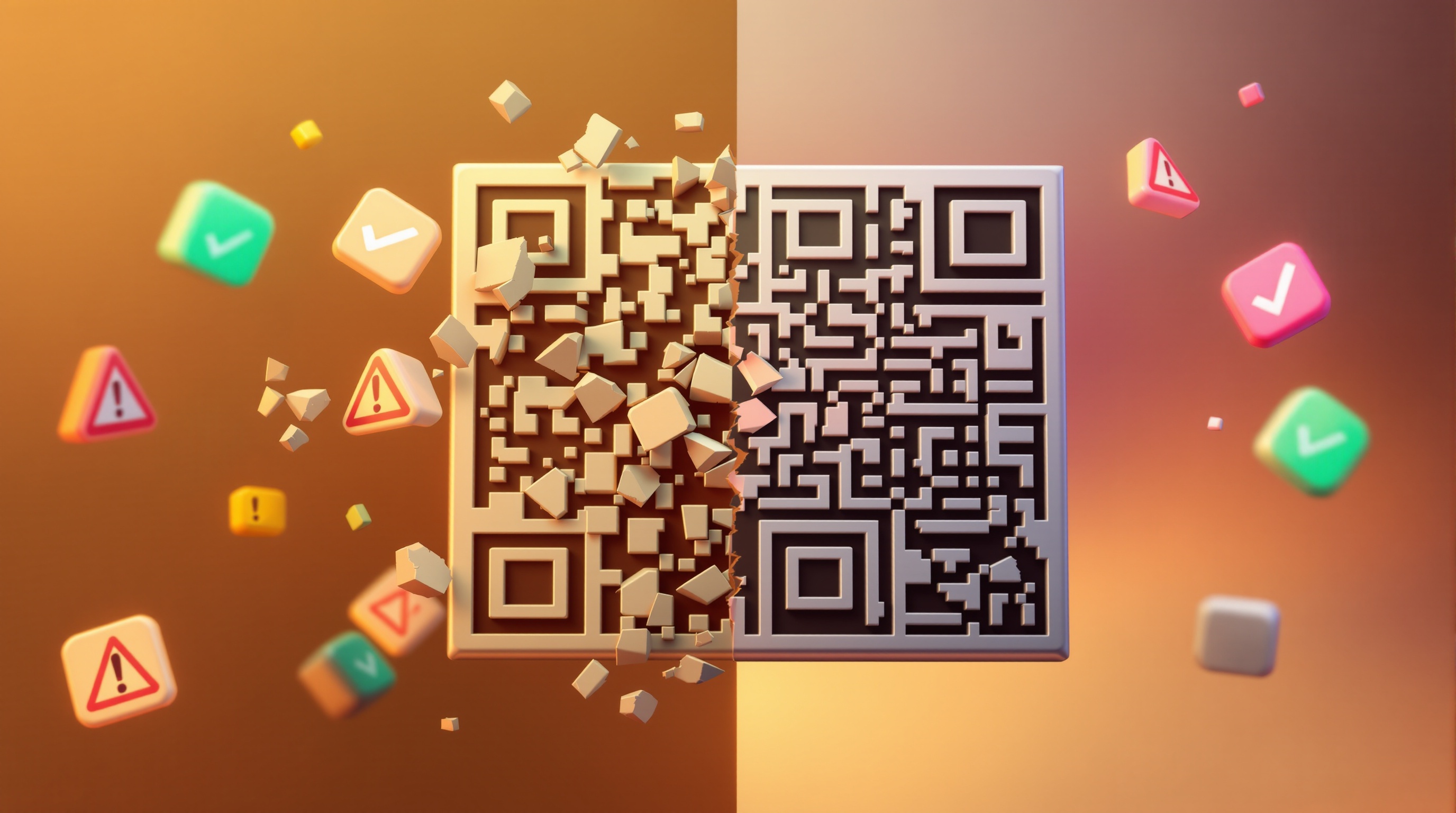
The most frequent error is insufficient contrast between the QR code and its background. Light gray codes on white backgrounds or dark codes on black backgrounds often fail to scan properly. Always test your color combinations before finalizing.
Another common mistake involves QR code sizing. Codes that are too small become difficult to scan, especially from normal viewing distances. Ensure your QR code is large enough to be easily captured by smartphone cameras.
URL errors plague many QR code implementations. Double-check that web addresses are complete and functional. Missing "https://" or typos in domain names render QR codes useless.
Placing QR codes in locations where they're difficult to access creates user frustration. Avoid positioning codes too high, too low, or in areas with poor lighting. Consider the physical context where users will encounter your QR code.
Testing failures lead to embarrassing discoveries after materials are printed or published. Always scan your QR codes with multiple devices and apps before going live with any campaign.
Integration with Marketing Materials and Workflows

Canva's QR code feature integrates seamlessly with their template library. Add QR codes to business cards, flyers, social media posts, and presentation slides without disrupting your existing design workflow.
For print materials, ensure your QR code maintains quality at the final print size. Use vector formats when possible, or export at high resolution for raster formats. Consider how different paper types and printing methods might affect QR code readability.
Digital marketing materials benefit from QR codes that link to specific landing pages, contact forms, or social media profiles. Track QR code performance by using unique URLs that connect to your analytics platform.
Restaurant menus represent one of the most successful QR code applications. Customers can quickly access digital menus, reducing printing costs and enabling real-time updates. Position QR codes prominently on table tents or at entry points.
Event marketing leverages QR codes for registration, schedule access, and networking. Include codes on promotional materials, tickets, and venue signage to enhance attendee experience.
Conclusion
Creating QR codes with Canva streamlines the design process by keeping everything within one platform. You maintain brand consistency while producing functional codes that integrate seamlessly with your marketing materials.
Start by planning your QR code's purpose before jumping into design. This single step helps eliminate most implementation failures and ensures your codes actually serve your business goals.
Remember to test thoroughly, maintain proper contrast, and size your codes appropriately for their intended use. These fundamentals ensure your QR codes work reliably across different devices and scanning conditions.
For businesses needing advanced QR code features beyond Canva's capabilities, specialized tools like Nomely's QR Code Generator provide additional customization and tracking options. Choose the tool that best matches your specific requirements and workflow preferences.